Setting up your RHEMA Daily
Plug it in and it walks you through setup on its own screen. This page shows each screen so you know what to expect. It takes a few minutes.
Have these ready
- Your WiFi network name and password
- Your 5-digit ZIP code
- A ministry code, if your church gave you one. This is optional.
1Welcome
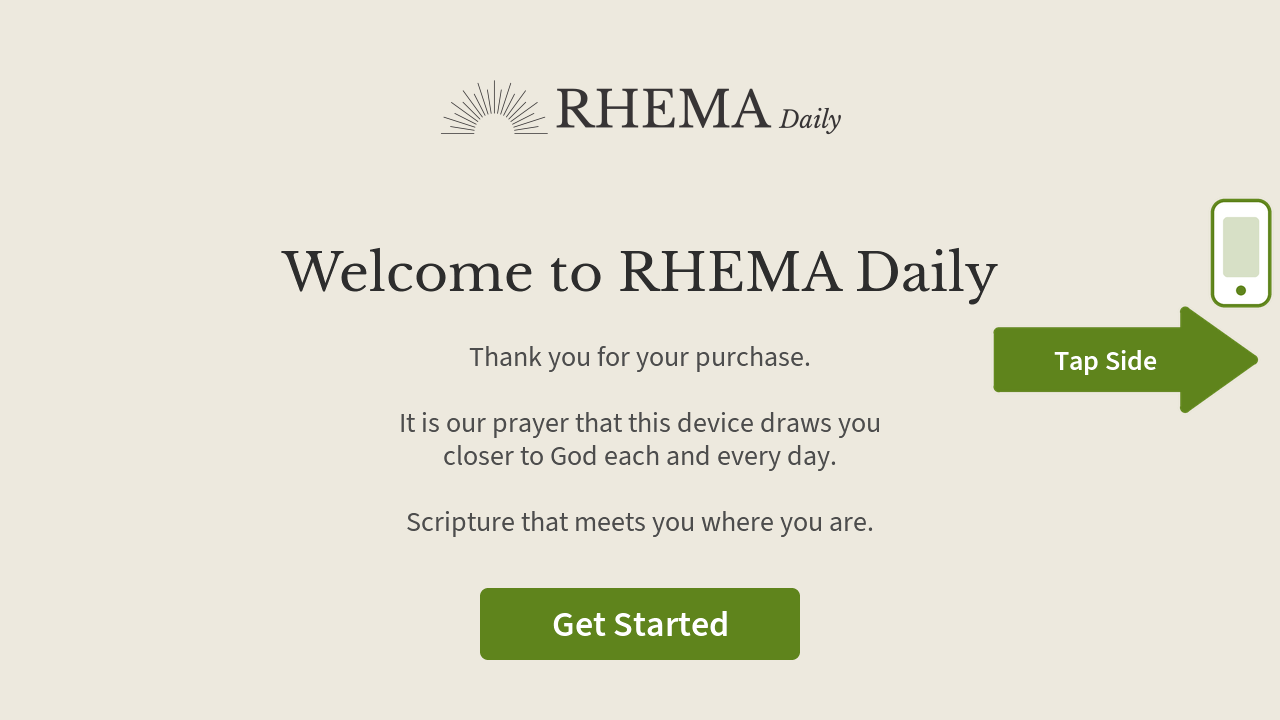
Tap Get Started.
2Choose your WiFi
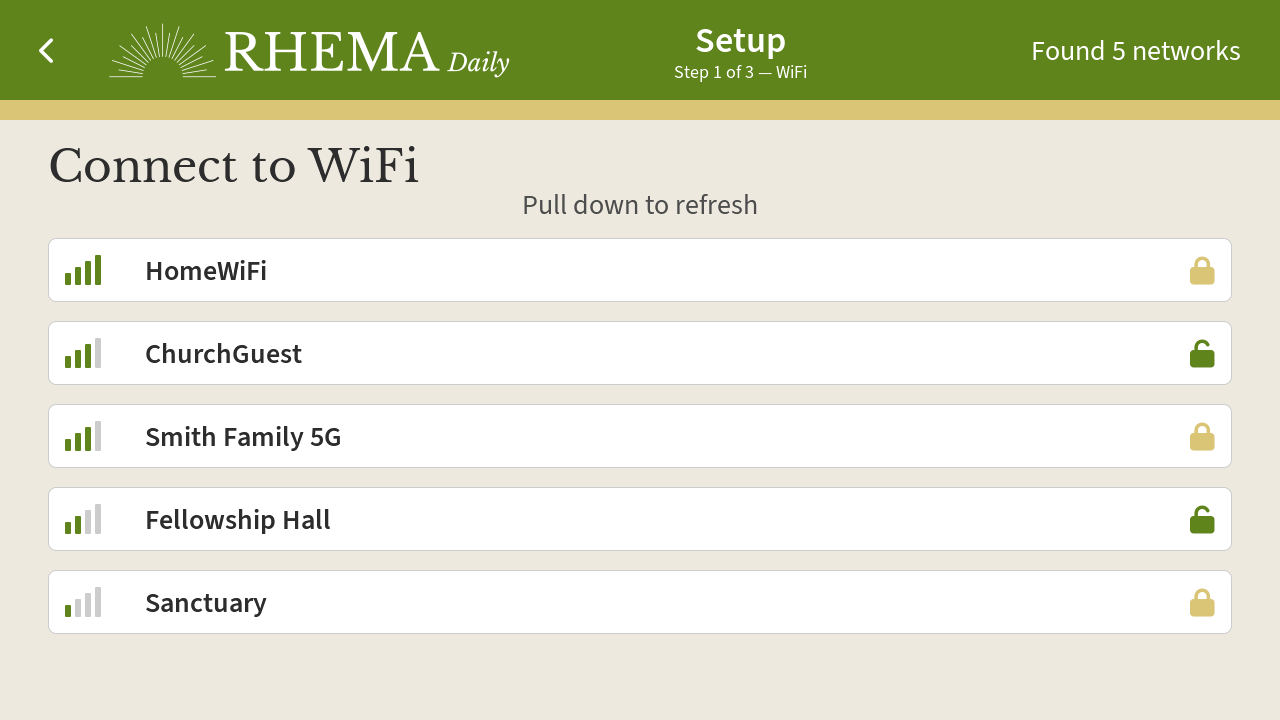
Your device looks for networks nearby. Tap yours. A lock means the network needs a password; a network without a lock connects straight away.
Don't see yours? Pull the list down to search again.
3Enter your WiFi password
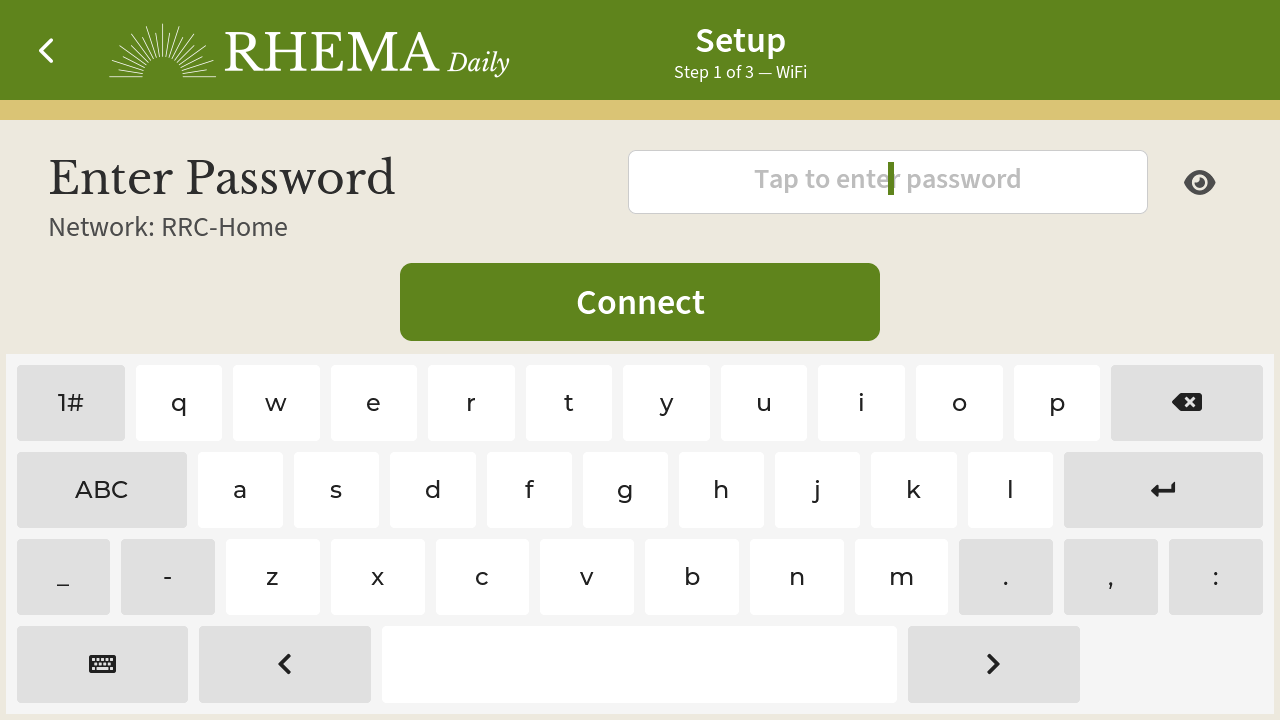
Type your WiFi password and tap Connect. After it connects, the screen says Checking connection... for a few seconds while it makes sure it can reach RHEMA.
4Your ZIP code
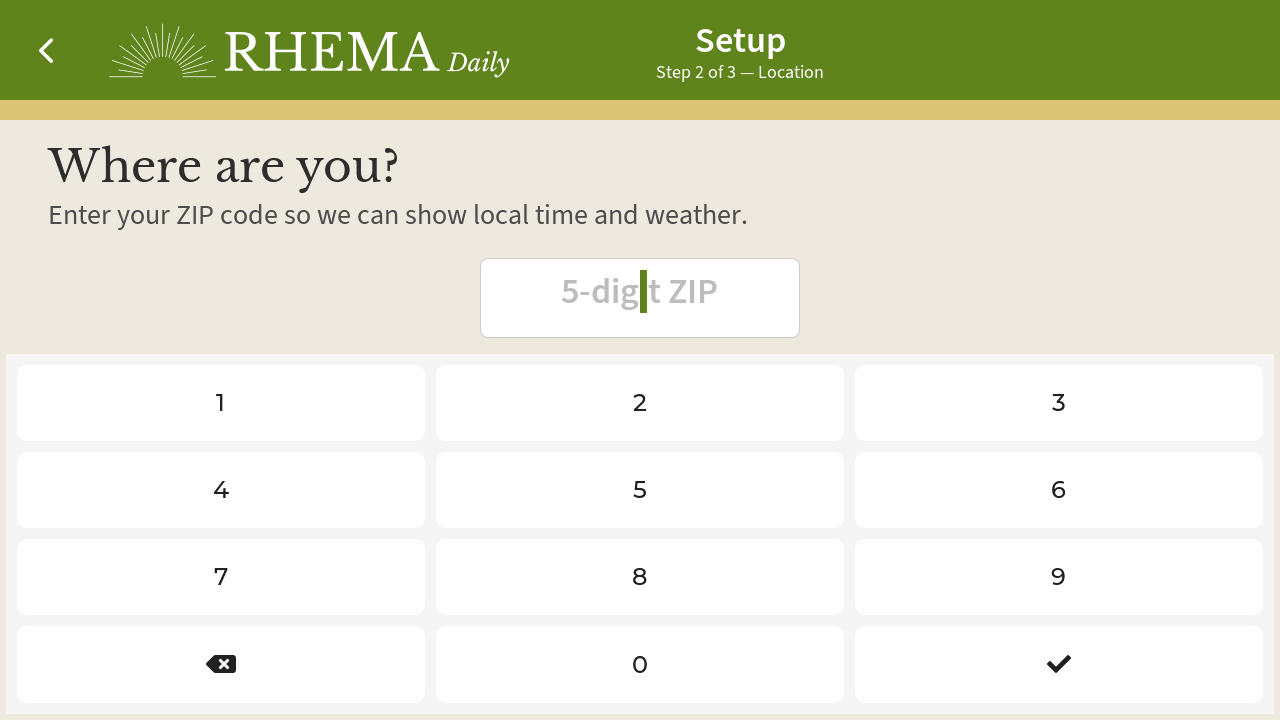
Enter your 5-digit ZIP so your device can show local time and weather. When it finds your town, it shows the city and state. Tap the checkmark to continue.
5A ministry code?
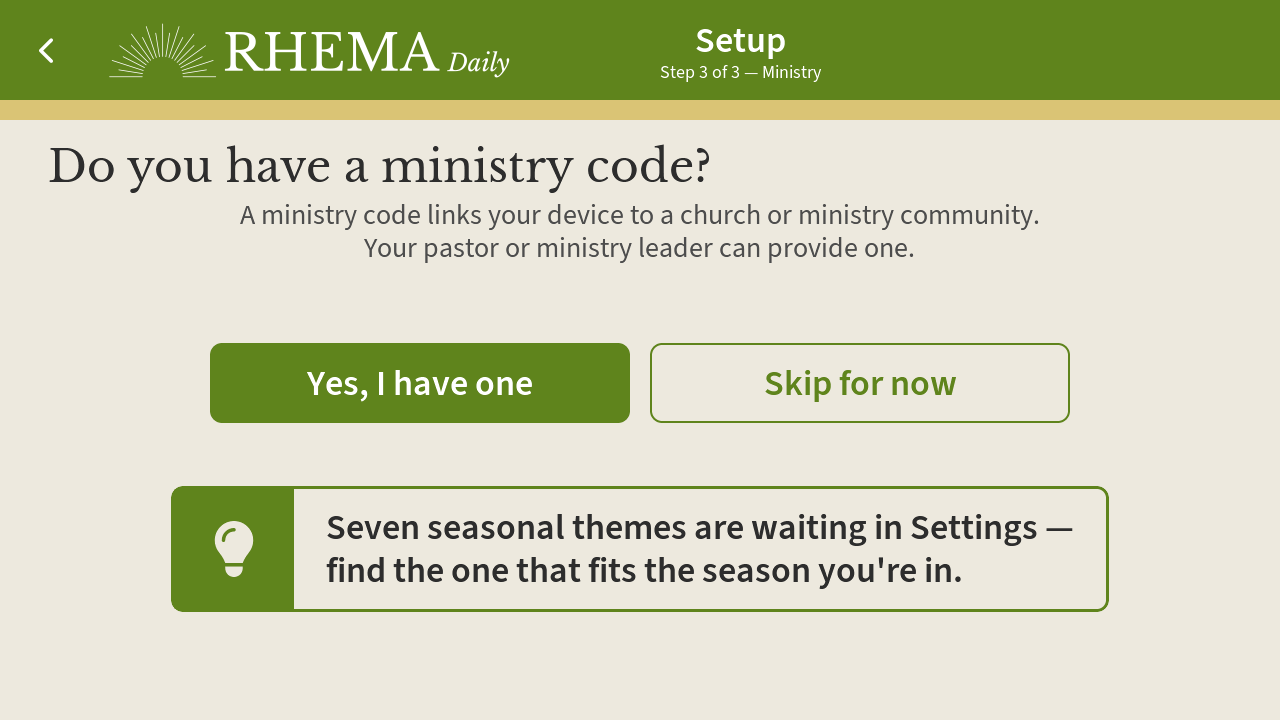
A ministry code links your device to a church or ministry community. Your pastor or ministry leader can give you one.
Tap Yes, I have one to enter it. If you don't have one, tap Skip for now. Setup finishes right away, and you can add a code later in Settings.
6Enter your ministry code
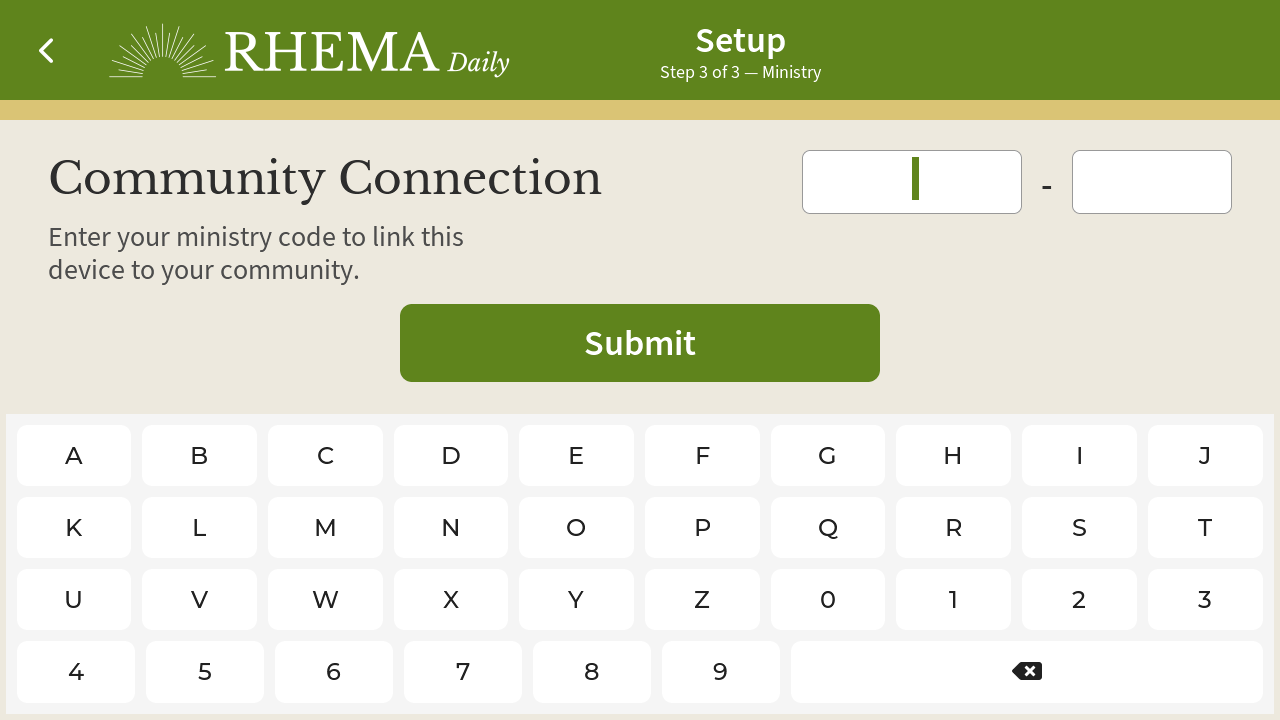
A code is five letters or numbers, a dash, then four more. Use the keyboard to fill both boxes, then tap Submit. The device checks the code and shows your ministry's name when it finds it.
7Share with your community?
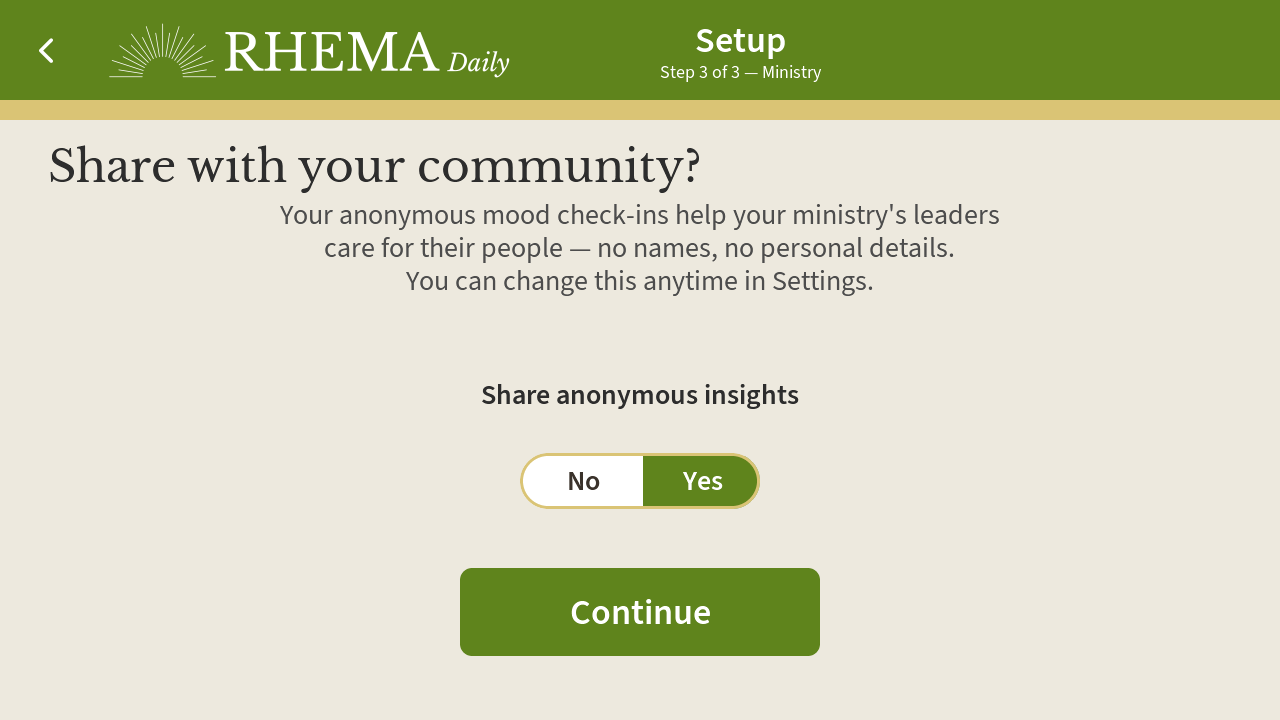
Your anonymous mood check-ins can help your ministry's leaders care for their people, with no names and no personal details. Yes is selected to start. Tap No if you'd rather keep your check-ins private, then tap Continue. You can change this anytime in Settings.
8All set
The screen says All set! and the device restarts to load your daily verse. After the restart you'll see your home screen, and you can tap a mood to begin.
Need to change something later?
Your WiFi, ZIP code, and ministry connection all live in Settings (the grid icon in the top-left corner).